How to Merge PDF Files Online Free (Combine PDFs in Browser)

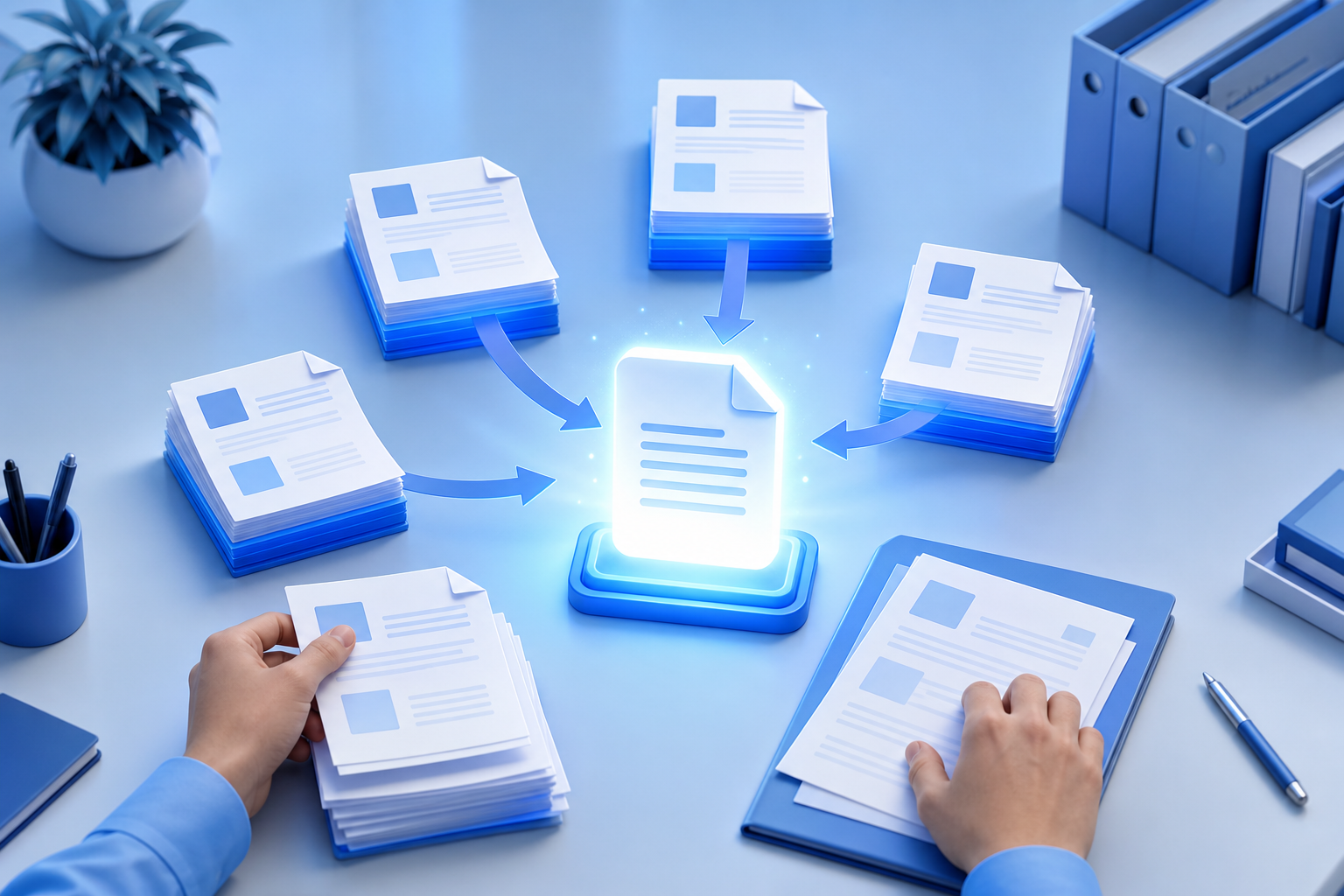
Merging PDF documents — 3D illustration

Five separate PDF attachments clutter inboxes and slow approvals. One merged document tells a coherent story — application packet, quarterly report, or event handout — and is easier to archive, print, and sign. Desktop software can combine files, but installing Acrobat or wrestling with print-to-PDF workflows is overkill when you need a quick, trustworthy merge in the browser.

This guide shows how to merge PDF files online with TetraKits Merge PDF, why in-browser processing matters for privacy, how to reorder pages before export, and how merging fits with Compress PDF and Split PDF in a complete document workflow.

Why merge PDF files online

Online merge tools win on speed and accessibility. You are on a borrowed laptop, a Chromebook, or a phone — no admin rights, no license. Upload (or drag) files, arrange, download. Done.

Quality merge tools preserve fonts, vector graphics, and searchable text instead of rasterizing everything into blurry images. TetraKits merges natively in the browser using modern PDF libraries so combined output stays sharp for professional use.

When merging beats alternatives

  • Email limits: One attachment under the size cap beats five that bounce.
  • Review workflows: Approvers scroll one narrative instead of tab-hopping.
  • Printing: Print shops prefer single job files with correct page order.
  • Archiving: One filename per project simplifies search and backup.

Browser privacy and security

PDFs often contain contracts, medical forms, financial statements, and unreleased creative work. Cloud merge services that upload files to unknown servers create compliance and confidentiality risk.

TetraKits Merge PDF processes documents locally in your browser. Files are not transmitted to TetraKits for storage during the merge operation. That architecture suits:

  • HR onboarding packets with personal data
  • Legal drafts under client confidentiality
  • Student records on shared lab machines
  • Small business invoices before public release

Always clear downloads from shared devices after sensitive merges, and verify you are on the official TetraKits domain before processing confidential material.

Step-by-step: merge PDF files online

  1. Open Merge PDF on TetraKits — no account required.
  2. Add files by dragging them into the drop zone or clicking to browse. Select multiple PDFs at once if your file picker supports it.
  3. Review the file list. Each source PDF appears as a block; pages inherit source order initially.
  4. Reorder files or individual pages if the interface exposes page-level controls — put cover pages first, appendices last.
  5. Click merge and wait for processing. Large files take longer but stay on-device.
  6. Download the combined PDF and open it locally to verify page count and orientation.

If the merged file exceeds email limits, run it through Compress PDF before sending — start with balanced mode for mixed text and images.

Reorder and organize pages

Merge is not only concatenation — order communicates meaning.

Logical narrative flow

Place executive summary first, detailed exhibits after signatures, terms and conditions before appendices. Misordered pages cause signers to reject DocuSign envelopes.

Mixing portrait and landscape

Combining slides (landscape) with contracts (portrait) is valid; preview before print to catch awkward page breaks.

Fixing mistakes without starting over

If one section belongs elsewhere, merge in stages or merge then Split PDF to extract misplaced ranges, reorder, and merge again. For frequent edits, keep source PDFs named clearly (`01-cover.pdf`, `02-body.pdf`).

Common use cases

Job and school applications

Combine resume, cover letter, transcripts, and portfolio pages into one upload-friendly PDF for applicant tracking systems.

Accounting and invoicing

Merge monthly invoices, receipts, and bank statements for bookkeepers or tax preparers.

Real estate and legal

Package disclosures, inspection reports, and addenda for buyers reviewing on tablets.

Marketing and events

Merge speaker bios, schedules, and venue maps for conference apps that accept single PDF uploads.

Internal reporting

Combine departmental PDF exports into one quarterly board deck without reformatting slides in PowerPoint.

Complete PDF workflow tips

Merging is one step in a chain:

  • Split first if you only need portions of large sources — Split PDF extracts ranges before merge.
  • Compress last when file size matters — Compress PDF reduces attachment weight after merge.
  • Name files clearly — `2026-Q1-Report-Full.pdf` beats `merged(3).pdf`.
  • Keep masters — retain unmerged sources for future edits.
  • Test on mobile — recipients often open attachments on phones.

Merging PDFs online should be fast, private, and predictable. TetraKits delivers browser-local processing, flexible ordering, and companion tools for split and compress — everything you need to ship one polished document instead of a scattered folder.

Frequently asked questions

Is merging PDFs online safe for confidential documents?

TetraKits merges PDFs locally in your browser without uploading files to TetraKits servers for storage. For highly sensitive material, still use trusted devices and clear downloads afterward.

How many PDFs can I merge at once?

Practical limits depend on your device memory and file sizes. Merge in batches if you hit browser performance limits with very large collections.

Will merging reduce quality?

A proper merge preserves original page content without recompressing into low-quality images. Verify output if sources mixed scanned and vector pages.

Can I merge PDFs on my phone?

Yes. The Merge PDF tool works in mobile browsers. Large files may take longer on phones with limited RAM.

What if the merged file is too large to email?

Run the merged PDF through Compress PDF. Balanced mode suits mixed documents; maximum mode helps scan-heavy files.