TetraKits
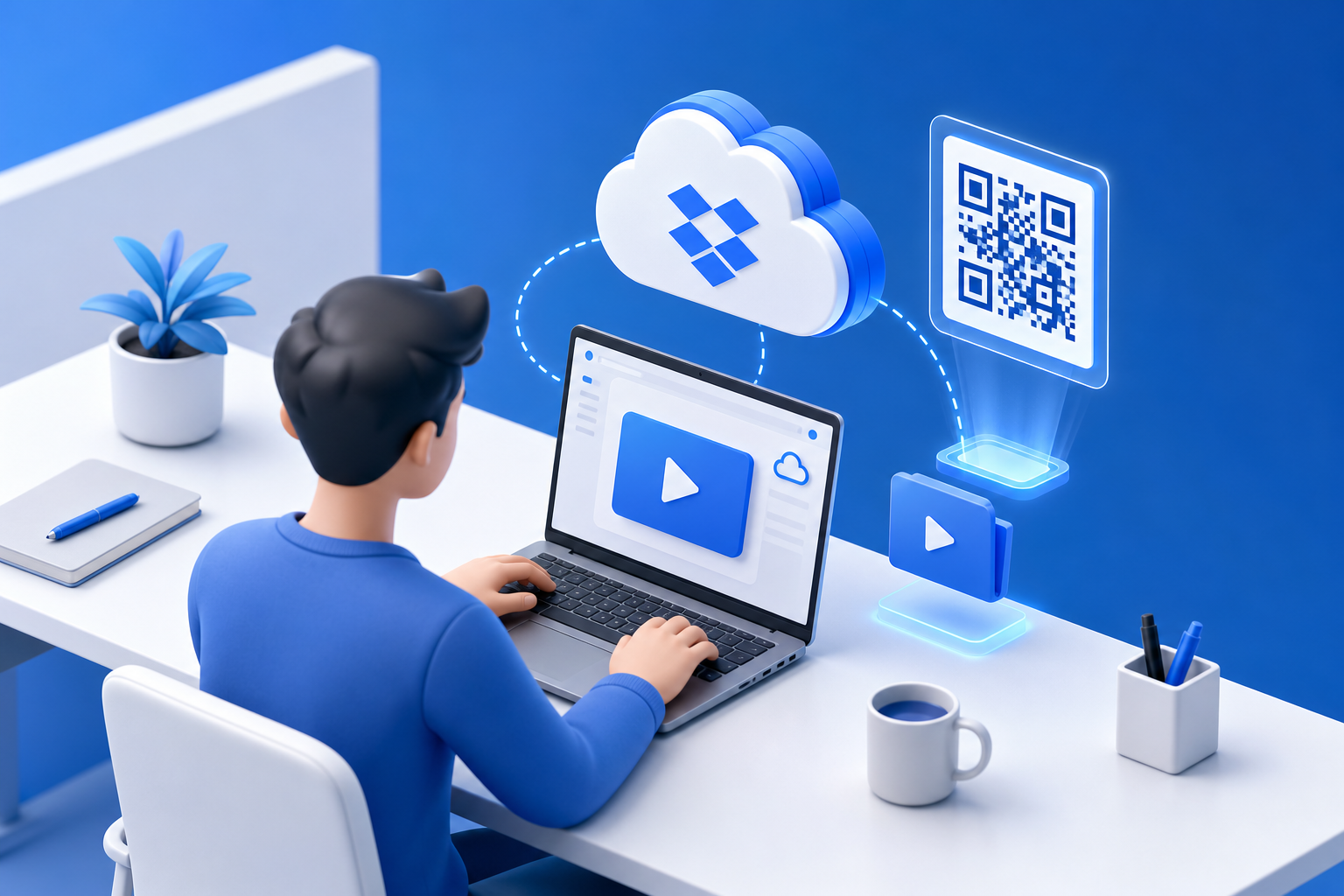
If you searched for how to download a video from Dropbox, you are probably trying to get a video into someone’s hands quickly — at an event, on a poster, in a classroom, or inside a printed program. The honest, practical answer for most real-world scenarios is not a shady downloader or a workaround that violates terms of service. It is a stable Dropbox share link, packaged so people can open it instantly on their phone.
A QR code is the bridge. Instead of reading out a long URL or hoping attendees type it correctly, you give them a scannable code that opens your Dropbox video in the browser or Dropbox app. This guide explains how to share Dropbox video links responsibly, how to create QR codes with TetraKits, and how to pair video access with PDF handouts using our free document tools.
Clarifying the goal: share, don’t rip
Dropbox is designed for sharing files you own or have permission to distribute. When you control the video — a product demo, a conference recording, a training clip, a reel for a campaign — the right workflow is:
- Create a view link (or download link if appropriate) in Dropbox.
- Test that link on mobile and desktop.
- Distribute the link via QR code, email, slides, or printed materials.
Third-party “Dropbox video downloaders” often raise privacy, malware, and copyright concerns. They may stop working when Dropbox changes its platform, and they are a poor fit for professional marketing. If you have legitimate access to the file, share it through Dropbox’s own sharing controls and make that link easy to reach with a QR code from the QR Code Generator.
When a share link is the better choice
Share links shine when the audience is mixed — some users have Dropbox accounts, others do not. A standard HTTPS link opens in the browser without requiring installation. For large files, Dropbox handles streaming and bandwidth more reliably than attaching videos to email or messaging apps.
Getting a Dropbox share link for your video
Before you generate a QR code, confirm the underlying link works for the audience you have in mind.
- Sign in to Dropbox and locate your video file.
- Select the file and click Share.
- Create a link. For public-facing marketing, choose settings that allow recipients to view (or download, if you intend that).
- Copy the full URL. It should begin with
https://www.dropbox.com/orhttps://dl.dropboxusercontent.com/depending on how Dropbox formats the link. - Open the link in a private browser window or on a friend’s phone to verify it plays without extra login steps.
Link expiration and permissions
For one-day events, a non-expiring link is usually fine. For sensitive internal training, consider password protection or limited access within Dropbox teams. If you replace the video file in Dropbox while keeping the same share path, test again — some replacements break older embeds or previews.
File size and playback expectations
Very large videos may buffer on slow mobile networks. If your audience will scan codes in a venue with weak Wi‑Fi, consider compressing the master file before upload, or hosting a shorter preview clip with a link to the full version. Set expectations on signage: “Scan for 2-min product demo” beats a vague “Scan for video.”
Turning a Dropbox video link into a QR code
Once your share link is verified, creating a QR code takes less than a minute.
- Open the TetraKits QR Code Generator.
- Choose Website mode.
- Paste your Dropbox share URL exactly as copied — no shortening required unless you prefer it.
- Adjust colors if needed, keeping high contrast between modules and background.
- Scan the preview with your phone on cellular data, not only on Wi‑Fi.
- Download PNG for slides and social posts, or SVG for large-format print.
TetraKits processes QR generation locally in your browser. Your Dropbox URL is not uploaded to TetraKits servers, which matters when links point to unreleased product videos or client work.
Label the code clearly
Users scan more confidently when they know the destination. Add text near the QR: “Scan to watch the keynote recap” or “Product demo — 3 minutes.” Mystery codes get ignored; descriptive codes get clicks.
Event marketing with video QR codes
Events are where Dropbox video QR codes deliver the most value. You have a captive offline audience and a digital asset that is awkward to type manually.
Trade shows and booths
Print a large QR on your backdrop linking to a booth tour or product animation hosted on Dropbox. Staff can walk visitors through the scan, answer questions, and follow up later without handing out USB drives.
Conferences and workshops
Slide decks rarely include full videos because file sizes balloon. Instead, end a section with a QR linking to a Dropbox recording of a demo or speaker clip. Attendees save the content without bloating the PDF you email afterward.
Retail and pop-up activations
Window displays and shelf talkers with QR codes can link to styling tutorials, assembly guides, or influencer content stored in Dropbox. Rotate the video seasonally while reusing the same printed QR only if the underlying link stays constant.
Measuring engagement
Dropbox shared link analytics depend on your plan, but you can still tag campaigns by using separate links or folders per event. Combine unique QR codes per location with distinct share URLs to see which poster drove more opens.
PDF handouts and companion materials
Video QR codes rarely work alone. Attendees still want something they can skim later — agendas, spec sheets, price lists, or speaker bios. That is where TetraKits PDF tools complete the workflow.
Building a handout package
Export slides or documents as PDFs, then use Merge PDF to combine cover pages, schedules, and reference appendices into one file. Embed the same Dropbox video QR on the cover or footer page so digital and print materials stay aligned.
Keeping attachments emailable
Merged handouts with high-resolution images can exceed email limits. Run the final PDF through Compress PDF before sending to your mailing list. Choose balanced compression for mixed text-and-photo layouts, or maximum mode for scan-heavy documents. All processing stays in the browser for privacy.
Splitting post-event assets
After an event, you might distribute one master PDF but only need certain pages for sponsors or press. Use Split PDF to extract relevant sections without rebuilding the document from scratch.
Best practices for sharing Dropbox videos via QR
- Test on real devices: iPhone Safari, Android Chrome, and the Dropbox app if installed.
- Size codes for distance: Posters need larger QR modules than business cards.
- Respect rights: Share only content you are authorized to distribute publicly.
- Plan for offline moments: QR opens the link; playback still needs network access unless users download within Dropbox.
- Refresh broken links: If you migrate folders, reprint or update digital assets.
- Pair video with text: A one-page PDF summary increases retention after the scan.
You do not need a dedicated “Dropbox video downloader” to deliver great experiences. Share the file properly in Dropbox, encode that link in a QR code with TetraKits, and support it with merged or compressed PDF handouts. That stack is fast, professional, and honest about how content should move from your folder to your audience.
Frequently asked questions
Can I use a QR code to download a Dropbox video automatically?
A QR code opens the URL you encode — typically a Dropbox view or download page. Whether the recipient can download depends on the permissions you set in Dropbox, not on the QR code itself. Configure sharing in Dropbox first, then generate the QR from that link.
Does this guide show how to download someone else’s private Dropbox videos?
No. TetraKits recommends sharing only content you own or have explicit permission to distribute. Unauthorized downloading may violate copyright and Dropbox’s terms. Use official share links for legitimate distribution.
Will the QR code work if the viewer doesn’t have Dropbox installed?
In most cases, yes. Dropbox share links open in a mobile or desktop browser. Installation may be optional depending on your link settings and the visitor’s device.
How do I add a video QR code to a PDF handout?
Generate the QR as PNG or SVG, insert it into your document layout, and export to PDF. If the file is large, merge related PDFs with Merge PDF and compress with Compress PDF before emailing.
Is my Dropbox link sent to TetraKits when I create a QR code?
No. TetraKits generates QR codes locally in your browser. The URL you paste is used on your device to render the code and is not uploaded for storage on TetraKits servers.