TetraKits
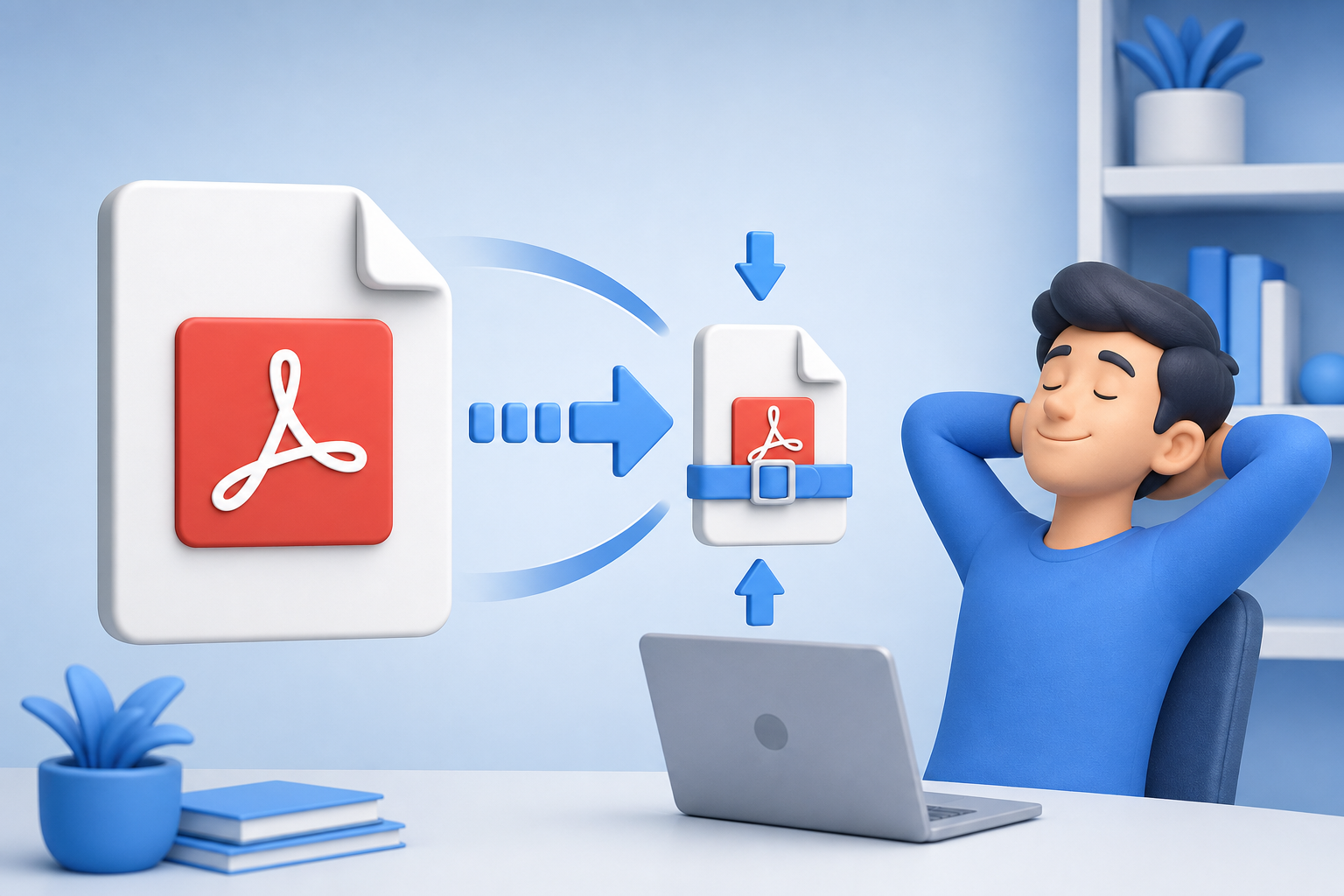
Shrink PDF file size without uploading to a server. Choose light, balanced, or maximum compression, preview the size reduction, and download the optimized file — all processing stays in your browser. The TetraKits Compress PDF runs entirely in your browser — free, private, and ready on mobile or desktop.
Overview
Email attachment limits, portal upload caps, and mobile sharing all punish oversized PDFs. Browser-based compression with three levels lets you trade file size against quality — privately, without sending documents to a server.
How to use the compress pdf
- Upload your PDF — Drag and drop or click to select a PDF file. The original file size displays immediately.
- Choose compression level — Light preserves quality. Balanced is the default. Maximum shrinks size most — best for email attachments.
- Download the result — See compressed size and savings percentage, then download. To combine files first, use merge PDF.
Common use cases
- Upload your PDF: Drag and drop or click to select a PDF file.
- Choose compression level: Light preserves quality.
- Download the result: See compressed size and savings percentage, then download.
- Bookmark for quick access: Save the tool for repeat tasks without installing an app.
Frequently asked questions
Is compressing PDFs free?
Yes. TetraKits Compress PDF is completely free with no signup or usage limits.
Are my files uploaded to a server?
No. PDF compression happens entirely in your browser. Your files never leave your device.
Will compression reduce text quality?
Text stays sharp at all levels. Image-heavy PDFs may show slight quality loss at maximum compression.
What compression level should I use?
Light for print-ready documents. Balanced for most sharing. Maximum when you need the smallest file for email or upload limits.
Can I compress multiple PDFs at once?
Compress one file per session. Merge multiple PDFs first with merge PDF, then compress the combined file.