TetraKits
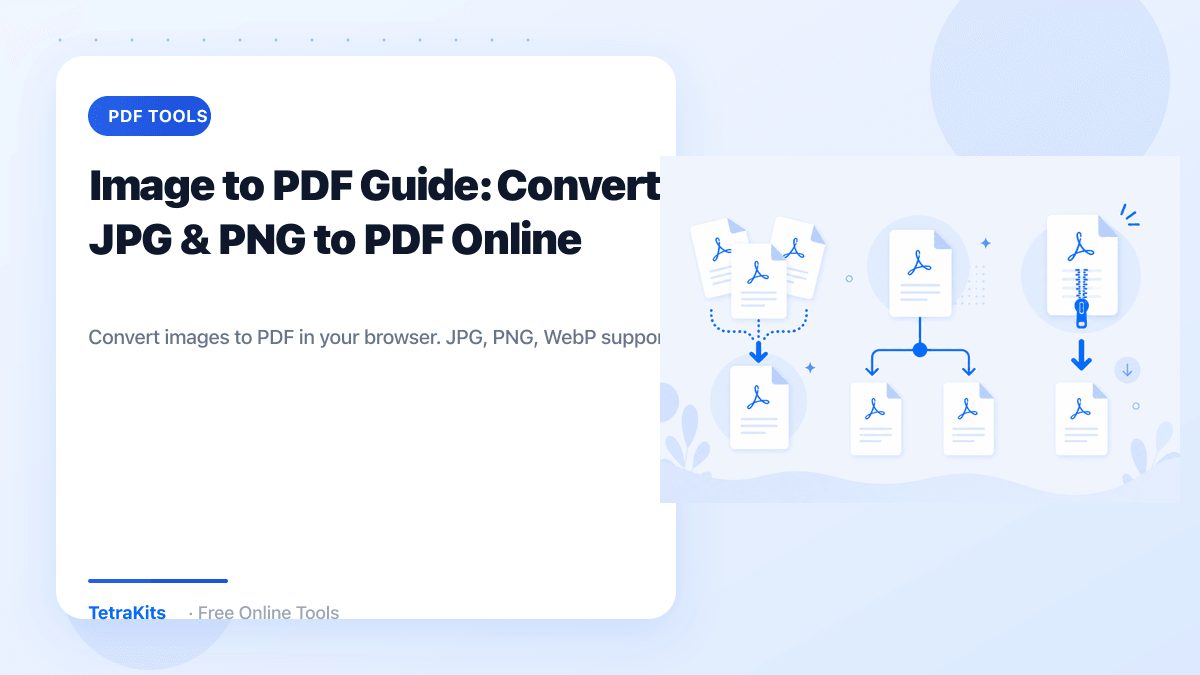
Convert JPG, PNG, and other images into a PDF — in your browser. Add multiple images, arrange page order, choose page size, and download a single PDF without uploading files to any server. The TetraKits Image to PDF runs entirely in your browser — free, private, and ready on mobile or desktop.
Overview
Scanning receipts, submitting photo ID documents, and bundling screenshots for a report all need images packaged as PDF. Browser conversion handles multiple files with page sizing — privately, without cloud upload.
How to use the image to pdf
- Add your images — Drag and drop or select JPG, PNG, or other image files. Add multiple images for a multi-page PDF.
- Arrange and set page size — Reorder images by dragging. Choose page dimensions (A4, Letter, or fit to image).
- Download the PDF — Click download to save. To shrink the file, use compress PDF afterward.
Common use cases
- Add your images: Drag and drop or select JPG, PNG, or other image files.
- Arrange and set page size: Reorder images by dragging.
- Download the PDF: Click download to save.
- Bookmark for quick access: Save the tool for repeat tasks without installing an app.
Frequently asked questions
What image formats are supported?
JPG, JPEG, PNG, WebP, and other common raster formats. Each image becomes one PDF page.
Are images uploaded to a server?
No. Conversion runs entirely in your browser. Images never leave your device.
Can I combine multiple images into one PDF?
Yes. Add as many images as needed and arrange page order before downloading.
How do I control page size?
Choose A4, US Letter, or fit-to-image sizing. Fit mode scales each image to fill the page proportionally.
Is this image to PDF converter free?
Yes. Unlimited conversions with no signup.