TetraKits
Overview
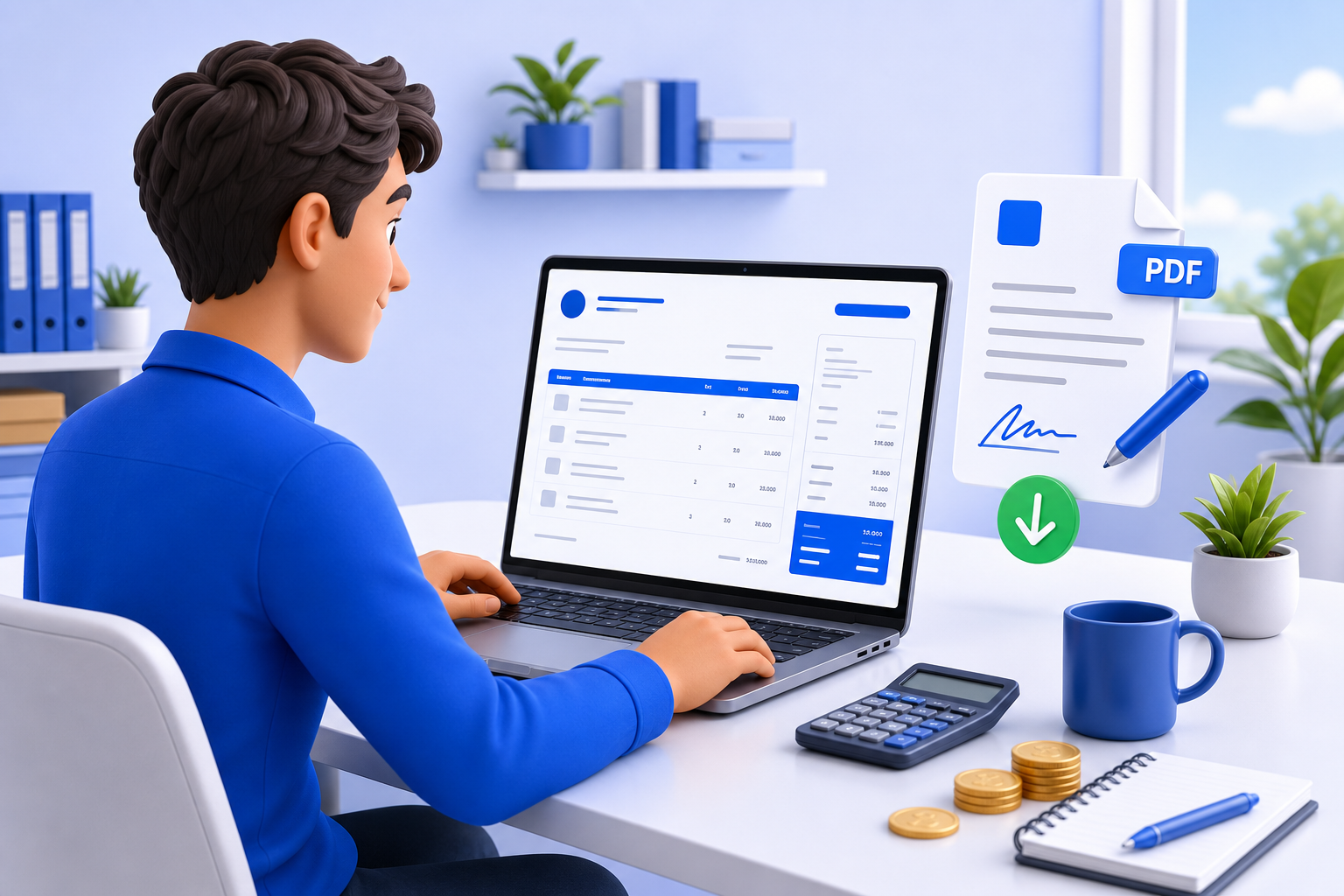
Contracts, invoices, and PDF forms often need a handwritten signature — but printing, signing, and scanning is slow. Draw your signature in the browser, pick a transparent or white PNG background, and download a ready-to-use image in seconds. Everything runs locally; nothing is uploaded.
How to draw and save a signature online
- Open the signature pad — Use mouse, trackpad, or finger on the drawing area.
- Adjust pen color and size — Black ink at 3px works for most documents; increase size for bold signatures.
- Choose background — Transparent PNG for overlays on PDFs and forms; white background for email or print.
- Download PNG — Tap Download PNG and insert the file into your PDF editor, invoice, or email client.
Transparent vs white background
A transparent PNG keeps only the ink pixels — ideal when placing a signature on colored forms, contracts, or slide decks. A white background PNG includes a solid white rectangle behind the stroke, which some email clients and word processors handle more predictably.
Common uses
- Signing PDF contracts and approval forms
- Adding a signature block to invoices and quotes
- Creating a reusable signature image for email
- Quick initials for internal documents
Frequently asked questions
Is my signature uploaded to a server?
No. Drawing and PNG export happen entirely in your browser. Your signature never leaves your device.
Can I get a transparent PNG?
Yes. Select Transparent background before downloading. The PNG keeps only the ink with alpha transparency.
What file format is exported?
PNG only — lossless quality with optional transparency, suitable for PDFs and documents.
Can I use this on mobile?
Yes. Draw with your finger on phones and tablets; the pad supports touch and stylus input.
Is the signature pad free?
Yes. Unlimited drawings and downloads with no signup.