TetraKits
You do not always need a dedicated QR app on your phone. Sometimes the code is on your laptop screen, inside a PDF, or attached to an email — and you want to read it from your desktop browser. Online QR scanners solve that gap: upload an image or use a webcam, decode the payload, and copy the result in seconds.
This guide explains how to scan a QR code online with the free TetraKits QR Code Scanner, when camera mode beats upload mode, what privacy-conscious users should know, and how scanning pairs with creating codes in the QR Code Generator.
When to scan a QR code online
Phone cameras remain the default in restaurants, stores, and transit ads. Online scanners shine in desk workflows where pulling out a phone is awkward or where the code never existed physically.
- Design and marketing QA: Verify QR proofs before sending files to print.
- Desktop PDFs and slides: Decode codes embedded in documents you are already reading on a computer.
- Email and chat attachments: Check whether a received QR links where it claims.
- Accessibility: Some users prefer a large on-screen decode with copyable text.
- Webcam kiosks: Front-desk machines without mobile devices can scan visitor codes.
Online scanning complements — not replaces — the native camera experience on phones. Choose the tool that matches where the code lives.
Camera vs. upload image
TetraKits QR Code Scanner supports two input paths. Each suits different environments.
Upload image mode
Upload a screenshot, photo, or exported PNG/SVG containing the QR code. The decoder analyzes the file locally and displays the embedded URL or text. Upload mode is ideal when:
- The code is part of a PDF, Figma export, or PowerPoint slide.
- You received an image file and want to inspect the link before opening it.
- Lighting or focus on a physical photo makes live camera scanning unreliable.
Camera mode
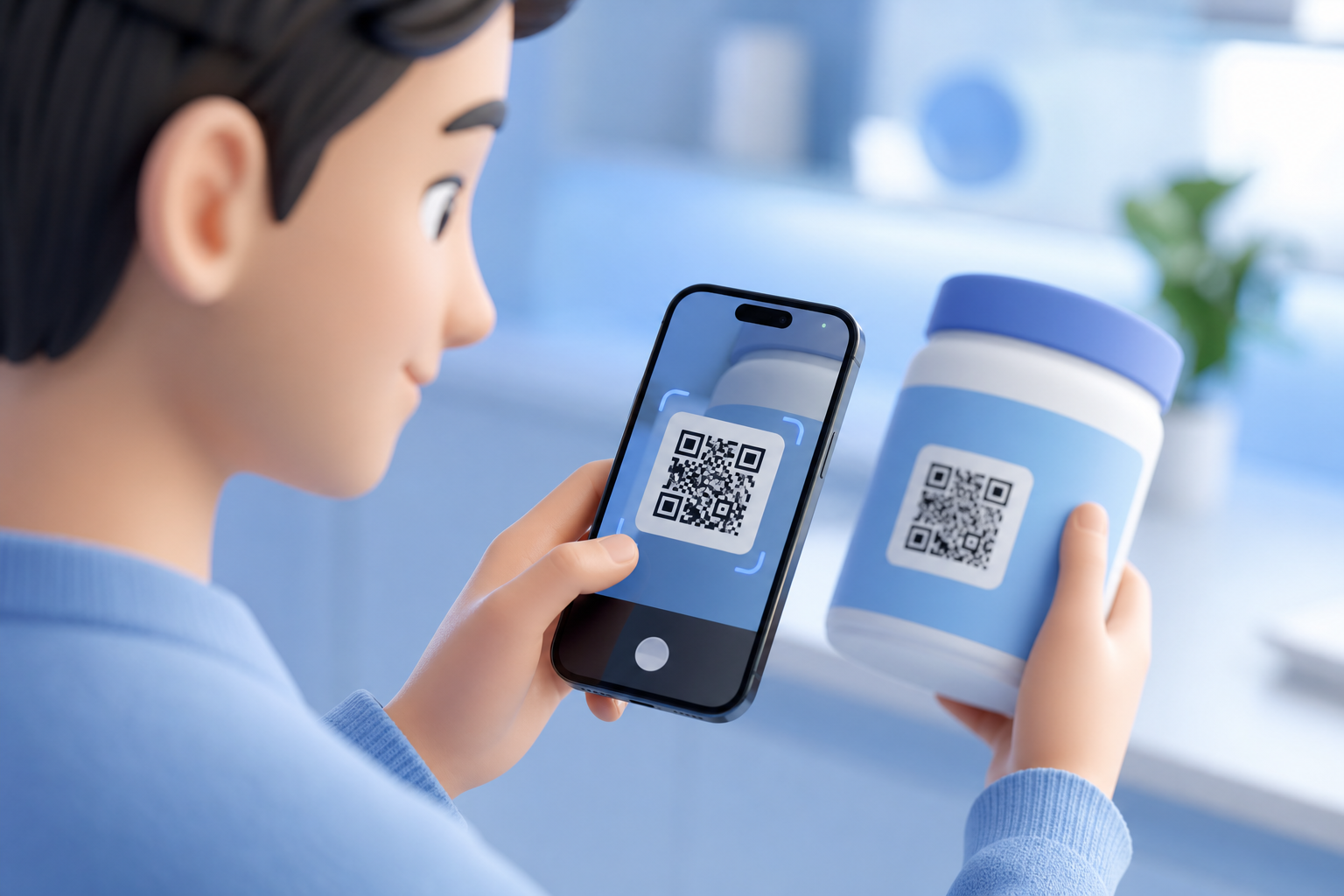
Grant browser permission to use your webcam or phone camera, point at a physical QR code, and hold steady until decode succeeds. Camera mode works well for:
- Quick checks of printed prototypes on your desk.
- Decoding codes on another monitor without taking a screenshot.
- Live demos during presentations when you are already on a laptop with a camera.
Which mode is more private?
Both modes on TetraKits are designed for in-browser processing. Upload mode never requires you to email the image elsewhere; camera mode avoids sending a continuous video stream to third-party servers for decoding. That matters when codes encode internal URLs or WiFi credentials.
Step-by-step: scan a QR code online
- Open the TetraKits QR Code Scanner. No account or extension install required.
- Choose your input method. Select Upload Image if you have a file; choose Camera for live scanning.
- For uploads: Click to browse or drag your image onto the drop zone. Crop is unnecessary if the QR occupies a reasonable portion of the frame.
- For camera: Allow permissions when prompted, align the code inside the viewfinder, and wait for automatic detection.
- Review the decoded result. URLs, WiFi payloads, vCard data, or plain text appear in a readable panel.
- Copy or open cautiously. Copy the text for documentation, or open links only when you trust the source.
If you are validating codes you created yourself, compare the decoded string against your source URL character by character — especially for WiFi and vCard payloads where small errors break functionality.
Privacy and security considerations
QR codes are URLs in disguise. Treat unknown codes like unknown links: they can point anywhere.
Verify before you visit
Online scanning lets you read a URL before navigating — a safety advantage over instant camera apps that open links immediately. If the domain looks wrong, stop.
Sensitive payloads
WiFi QR codes contain network passwords. vCard codes include phone numbers and emails. Scanning client materials on privacy-friendly tools reduces exposure compared to uploading proofs to random cloud converters.
Enterprise policies
IT teams validating internal signage can use browser-based scanners that keep images local instead of forwarding assets to unknown SaaS platforms.
Creating codes responsibly
If you distribute QR codes publicly, test them with the same scanner your audience might use. Pair scanning checks with creation in the QR Code Generator so encode-and-verify happens in one trusted place.
Common use cases for online QR scanning
Pre-print proofing
Marketing teams upload print-ready PDFs to confirm each QR resolves to the correct campaign URL with UTM tags intact. Catching a typo before a ten-thousand-unit print run pays for itself instantly.
Competitive and partner review
Decode competitor packaging or event materials from photos to understand funnel design — without installing sketchy mobile apps.
Technical support
Support staff decode customer-submitted screenshots of broken codes to see whether the payload is malformed or the print quality failed.
Education
Teachers scan codes from worksheet PDFs on classroom computers when student phones are discouraged.
Archival research
Journalists and researchers extract links from photographed documents where OCR on surrounding text is easier than manual transcription of encoded URLs.
Troubleshooting failed scans
When decoding fails, the issue is usually optical — not mathematical.
- Low contrast: Inverted or low-contrast brand colors confuse decoders. Regenerate with darker modules on lighter backgrounds.
- Blur or motion: Retake photos or increase shutter stability for camera mode.
- Cropped quiet zone: Ensure margin around the code; do not clip edges in design software.
- Extreme perspective: Photograph head-on when possible.
- Damaged print: Smudges and folds destroy modules; reprint if scans fail consistently.
- Wrong barcode type: Linear product barcodes are not QR codes — use a barcode reader instead.
Online QR scanning is a practical desktop superpower: inspect codes before you trust them, validate creative before print, and debug customer issues without reaching for a phone. TetraKits keeps scanning and generation in the same privacy-minded toolkit so your workflow stays fast and consistent.
Frequently asked questions
Can I scan a QR code online without an app?
Yes. Open the TetraKits QR Code Scanner in a modern browser, upload an image or use your camera, and read the decoded content instantly. No app store download is required.
Does online QR scanning work on iPhone and Android?
Yes. Mobile browsers support upload and camera modes. Native phone cameras still work well for physical codes in the wild; online scanners add value for images and PDFs already on your device.
Is it safe to scan unknown QR codes online?
Online scanning lets you see the URL before opening it, which is safer than blindly following redirects. Still treat unfamiliar domains with caution and avoid entering credentials on untrusted sites linked from codes.
Why won’t my QR code decode from a screenshot?
Common causes include low resolution, partial cropping of the quiet zone, heavy compression artifacts, or low contrast colors. Try a higher-quality image or regenerate the code with stronger contrast.
Can I scan and create QR codes on the same site?
Yes. Use the QR Code Scanner to decode and the QR Code Generator to create new codes — both free on TetraKits with browser-based processing.